
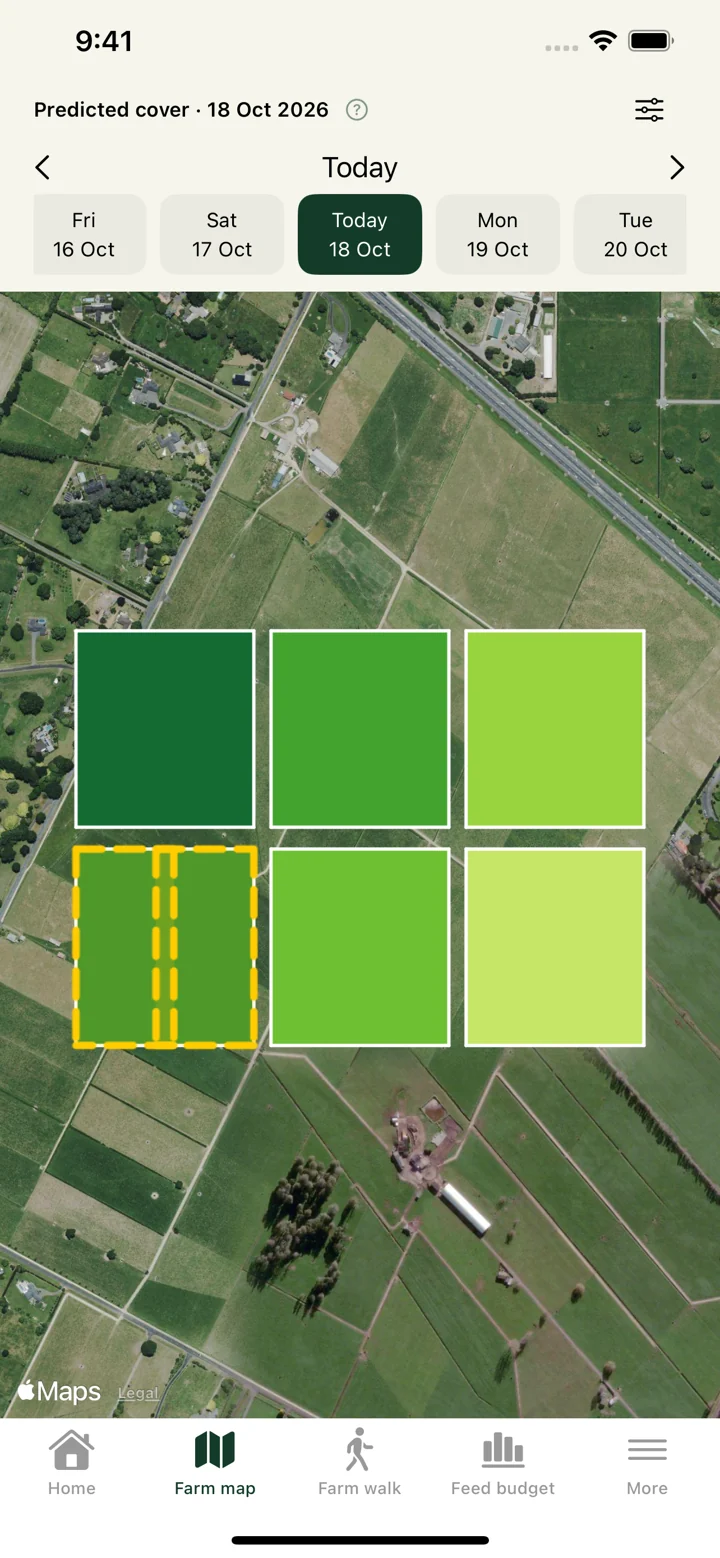
Draw paddocks and grazing breaks on satellite imagery
Create paddock boundaries by placing points along the fence line visible on the map. Name the paddock, review its calculated area and add the pasture cover information you need for planning. You can also mark troughs and exclude unusable ground.
A grazing break divides an allocation within a paddock. The break sits alongside the paddock’s cover and grazing information, so the map can support daily feeding decisions rather than being a separate drawing.
Import an existing farm map — beta feature
The farm map import tool accepts GeoJSON, KML, KMZ and zipped shapefiles, with files up to 2 MB. It is intended for mapped paddock polygons with usable location information. A photograph, screenshot or PDF of a paper farm map is not the same as a georeferenced boundary file.
In the import screen, choose an existing farm or create a new farm. Select the file and inspect the preview before applying it. Check that paddocks are in the right place and that names, boundaries and areas make sense. If a file needs a source coordinate reference system, use the correct reference from its exporter; do not guess it.
Replacing a map replaces paddock details, including boundaries, readings, breaks and notes. Herds and other farm records are kept. A server backup provides undo until paddocks are edited again. Read the replacement warning carefully, or import into a new farm to try the file separately. Report any beta import issues through the feedback form on our homepage.
Check the map against the farm
Compare imported or drawn boundaries with visible fence lines and your own farm knowledge. Calculated paddock area depends on the boundary supplied, so a different outline or treatment of excluded areas can give a different result from an older map. Satellite imagery is not a boundary survey.
Once you are happy with the map, record actual covers and use those paddocks in farm walks, feed wedges and grazing planning. A successful import is the start of checking the farm data, not a substitute for checking the boundaries.
Getting started
- Choose the farm that should receive the map, or create a new farm in the import screen.
- Draw boundaries or select a supported map file and review its preview.
- Check paddock positions, names, areas and the replacement warning before applying.
- Open the farm map and enter current pasture cover measurements for planning.